Thursday, 11 June 2015

Download Snake and Ladder Game for Android Phones/Tabs

Hello friends,

I know you really miss this game called “Snake and Ladder”… It’s been a while… When I was a kid, I was damn crazy about this particular game. We do sketch it then on paper and play. It was really fun but as I grew, I forgot about it completely. Thanks to Android device for bringing it back to my memory. I can now enjoy my long lost game hehehehe. I believe you have also missed this game. Get ready to bring back old memories!!!

Snake and Leader Game Download
Just like the old times… The game still involves snakes (sexy looking snakes) and some old rickety looking ladders. Two extraordinary dice that are controlled by your touch – at random though. It’s an interesting game between you and cpu which the aim is to get to the house before your opponent. As usual, on your way home, if you are bitten by a snake, you will be pulled down to the tail end of the particular snake that bit you. Why am I even explaining this game to you, am very sure that you know the rules lolz.
To that effect, click here to download 14mb

After downloading, install and play! Enjoy…

Wednesday, 10 June 2015

How to Buzz a Friend on Whatsapp that isn't replying

Brighter Gadgets - How to Buzz a Friend on Whatsapp that isn't replying
Hello friends,

I want to show you one trick i uses in buzzing peeps on whatsapp. Note, i said it is a "trick"

Have you been in that situation when you want to chat with a friend, like you want to send the person some important details that you need his/her urgent reply but after sending the message, you notice that it has gone but the person haven't read it and Whatsapp doesn't have the BUZZ button. This is where this trick works!

How to Buzz a friend on Whatsapp
  • Open whatsapp
  • Click on the friend you want to chat with
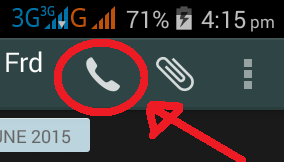
  • Then click on the Voice Call button at the top right corner of the screen
    Brighter Gadgets - How to Buzz a Friend on Whatsapp that isn't replying
  • When it's ringing, you can End the call.
By doing this, the person will know that you just sent him a message and he will definitely check it.

Try this today and see that it works like magic!

Wednesday, 27 May 2015

The Fastest way of Sharing Photos on Facebook using your Android phone

Hello friends,

Am here with an interesting article for you all.

…have you ever experienced that moment when you took a good looking picture of yourself and you are very anxious of spreading it all around Facebook so that your peeps could see how good looking you are? During this moment, you are really in a haste to upload that particular picture and you really need the fastest way of uploading it.

If you haven’t experienced the above scenario, then maybe you have experienced this one am about to narrate. That moment when you have only 5% of battery life on your android phone; you aren’t at home and you really need to upload that picture before you reach home to charge the phone? I guess you have experienced that one because I have. Now read my simple tip below to help you upload your picture faster to Facebook or any other social networks with just one click.

How to Share pictures to Facebook – The Fastest Way
  • After snapping your picture, click that share icon close to the picture either at the top right, bottom left or wherever.
  • Click Facebook from the list you get after clicking that particular icon.
  • After clicking Facebook, drag the notification bar of your android phone downwards and you will notice a process bar. That’s the process bar for your picture upload.
  • After the progress bar completes, your picture has finished uploading.
  • After uploading, you can click that completed progress bar and in the new window, you can tag a friend, like and comment. (optional though)

NB: If your network speed is very fast, you might not see the notification bar.

By doing the above listed steps, you have successfully uploaded a picture to Facebook easily and faster.

Myth: Some people claims that this progress consumes more data but it’s not true. It all depends on your picture size though.
Share this little tip with your Facebook friends.

Tuesday, 12 May 2015

How to Speed up your Internet Connection on your Android Phone

brightergadgets.blogspot.com
Hello friends,

Longest time… I have been really having a good time

I know that the topic of this article caught your attention. The fact is that, it’s true! Am going to show you how to do it. It will work because it worked/ for me.

Am not here to start exploring deep and complex things about Android and some hard tweaks to do. It’s just a simple and easy to do tutorial. Anybody can actually do this easily, without stress and it doesn’t take time. Enough of the story, let’s get started.

The Trick Behind this
What I want to show you is very simple; it’s a trick though. You will have to install a firewall app on your android phone that blocks apps from accessing the internet. How does.  this affects your network speed? I know you will ask that.

Imagine when 100s of apps are accessing one network then just one or two apps access the same network, what do you think will happen. Take for instance, if a modem shares network to 10 computers and the same modem share network to just one computer. Tell me, what do you think will happen to that modem that shares to one? It will definitely be faster! So that’s the trick behind this.

How to speed up your internet connection on your android phone
What you need:
A rooted phone
Droid wall app --- Click Here to Download
Or
A non-rooted phone
No-Root Firewall --- Click Here to Download
…See I told you that it’s for everybody both rooted and non-rooted users.

STEPS
  • ·  Download any of the apps listed above; it’s your choice.
  • ·  Install and then open.
  • ·Select the app(s) you want to access your network then click save or apply or ok which ever corresponds with the particular app you downloaded.
  • ·   For Droid wall, click here to read more about it. For noroot-firewall, click here to read more about it.

·         Make sure you select few apps for faster speed.


That’s all, it’s very easy to do. Hope this helps you!

Friday, 10 April 2015

How to Convert .Doc Files to Pdf using your Android phone

Brighter Gadgets - Convert PDF to Doc easily
Hello friends,

That annoying moment when you have to switch on your laptop just to convert a file to pdf. I so hate that moment! Am here with an application that will ease you of the stress of converting.

You can actually convert documents from one format to another using your android phone easily. 
You don’t need to on your desktop just to convert that particular pdf file to a doc file because your android phone can do it without stress. All you need is this app am about to share with you and your data on.

DOWNLOAD

STEPS
  • Download the app, install and open it
  • Click the  + sign at the bottom right of your android screen.
  • Click the SELECT LOCAL FILES if the file you want to convert is on your Sd card.
  • Now, locate the folder of the file you want to convert
  • Mark the file by clicking it. Then click done
  • Click the arrow pointing down close to OUTPUT FORMAT to select the format you want the output to be.
  • Output formats available: doc, docx, html, md, odt, pdf, rtf, tex, azw3, epub, lrf, mobi, oeb, pdb, jpg, png.
  • After choosing your output format, click START CONVERSIONS
  • After the conversion process, your file is ready. You can view the file immediately or you go to file manager / download folder to see your converted documents.
Brighter Gadgets - Convert PDF to Doc easily

NOTE: Internet connection required

A LITTLE TIP
If after 3 or 4 conversions, you get the notification message saying Purchase Full Version, just go to settings / app manager / then locate pdf converter pro, click on it and click Clear Data.
Reopen the app and see that you can continue converting heheheheh! 

…Brighter Gadgets   ….every thing is possible

If this post helped you, please use the share button! Thanks

Wednesday, 8 April 2015

Get More Internal and External Memory for your Android Phone


Hello friends,

Are you tired of getting the low on space notification? Do you want to break sorry free that phone? I’m here with that help you desire.

Note: Am not here today to teach you those tweaks. I just want to show you a friendly way of doing this.

There are so many things that occupies our internal memory which you probably know of. And also, those factors can be responsible for the low on space issue with our Sd card.

I introduce to you CLEAN MASTER.

Have posted an article in the past about Clean master but I actually rushed some of it features.

Clean Master gives it user the privilege to move apps from Internal memory to Sd card easily. This reduces the apps installed in the internal memory thereby creating more space for you to install more apps without having that annoying low on space notification.

 This also applies to the Sd card. If you hit the advance cleaning option on clean master, you will get the privilege to clean those cache files and it will shock you that after cleaning those files, you have already freed up to 500mb of space on your Sd card.

How To Move Apps From Your Internal Memory To The Sd Card Using The One Click Feature
  • Open clean master
  • Click App manager
  • Now locate and click the Move tab by the top right part of your screen.
  • Mark the apps you want to click and after marking, click Move to Sd Card.
  • A new window will open (your default app manager window.
  • Click the Move to Sd Card.  After that press back and continue for all the apps you have marked by pressing the Move to sd card turn by turn.
…That should be all

How to clear the cache files and other in-relevant files on your sd card.
  • Open clean master and locate Junk Files
  •  After it finish counting, leave the System Cache marked, you can unmark others.
  • After marking and un-marking your desired apps, click Clean Junk and wait for the process to complete.
Note: Some of this apps / files / folders are important to you. So check closely before clicking clean.

After doing this, you can check your device memory space and see how clean master helped you in creating and freeing more space.

You can DOWNLOAD Clean Master by CLICKING HERE.

Sunday, 5 April 2015

How To Send Installed Apps Through Bluetooth from your Android Phone

Hello friends,

I am here with another of my “How to” tutorials.

Some months ago, I published an article on how you can share your installed apps using an application called Flash Share which many people cherished that particular post. But the downside of it is that, not every android phone supports flash share (most phones supports it). And I also noticed something that, not every android phone has hotspot and android phone Wi-Fi signal is kind of poor which allows flash share not to work or performs poorly. Now, that’s where this post come handy! Read on

WHAT YOU NEED
Bluetooth App sender.

HOW TO GET THIS

HOW TO SEND INSTALLED APPS THROUGH BLUETOOTH USING THIS APP
  • After downloading, click to open
  • Locate that particular app you want to send by scrolling through the list of apps or click the search bar and type in the name of the app.
  • Now click on the app.
  • Click on SEND.
  • From the list of send options click Bluetooth.
  • You probably know the next step now… Locate the device name of your friend you want to send to.
  • Click the name then blab la bla…
It’s that easy to do!

Now you can share those installed apps from any of your android phone easily.

If you find this post helpful, do share it to a friend.


Search My Article

WE LOVE YOUR COMMENTS!!!

Like Brighter Gadget on Facebook

Read Our Tweets