Showing posts with label how to. Show all posts

Sunday, 20 September 2015

How to Clean a Rough Face using your Android Phone

Hello friends,

…am here with something interesting today; some tricks for your android phone.

I keep on saying it that android is a smart OS and you must do things smartly with it lolz. It’s very annoying when you take a snap shot during a special occasion and when going through the pictures to upload to the net, you noticed that some parts of your face are kind of rough (either pimples, rash or something similar) and you really want to edit the face to look smooth. 
The thoughts of heading to photoshop to do this edit breaks your heart maybe because you are far from your computer or you don’t know how to use the software. 

Why worry about it when you got your android phone with you. Image Blur App does the magic.

IMAGE BLUR:
Going by the name, you should know what the app does… It’s for blurring either the background of your image or some particular parts you don’t want to be obviously visible. It’s really cool for those functions.

I thought of other use of the app and I came up with this article. You can actually use image blur (or background image blur sometimes called so) to clean those annoying pimples/rashes on the face. Now continue reading below…

How to do this Simple Trick:
  • Download and install the app (image blur) from this link --- CLICK HERE 
  • Open it and locate the image you want to edit with the gallery icon.
  • Click the zoom icon then double tap on your screen or pinch to zoom.
  • Now click the brush icon and drag it backward to reduce the brush size.
  • Finally, with your finger on your screen, rub every part of your face to get the smooth effect applied.
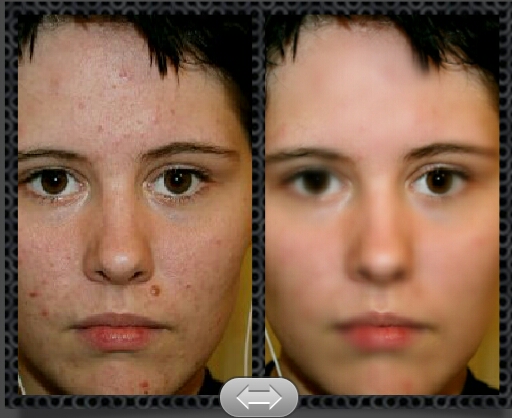
Note: Avoid rubbing the eyes of your image. You can touch the lips and nose a little. Check out the picture below. 

…that’s just all, check how the picture looks below and how it looks now. It’s a magic lolz

If this post was helpful, please share it with your friends. Thanks! 

- Team BG

Friday, 21 August 2015

How to Change your Phone Number on 2go Using your Android Phone

Hello friends,

Am here again after a long break… Am really sorry; was actually fixing some things. It was such a busy time for me.

I remember when 2go came to Nigeria, most of use immediately joined it probably with our old numbers. And after joining then, you will be credited with either 250 go credits or so; can’t remember. And let’s say you finished using those free go credits and didn’t purchase a new one. And during that period of having zero go credit, you lost your sim card and didn’t retrieved it. After purchasing a new sim, you can’t buy go credit and accept go credits on 2go anymore. You can’t chat in a room or in a group chat because you didn’t verified that particular number. 

I know you will be wondering that what sup with all these long story. The story above is the reason for this post because have gotten a lot of requests from friends asking me that how can they verify a lost number on 2go lolz. You can’t verify a lot number that why you need to change the number in your 2go profile. Now, read how to do this below

How to Change 2go Number
1. Log in to 2go and go to your profile
2. Click Change Number
3. You will be directed to a link, continue using opera mini or any other browser you like.
4. Now put your new number in the provided box and click proceed. And click yes in the next screen.
5. A text message will be sent to that number, click the link to continue.
6. Now confirm that you want to change to that number and click ok. You will see a message telling you that you have successfully changed your 2go number.

CONGRATULATIONS! Now you can verify your number by going to your profile and click Verify, 2go will send a message for you that costs 30 naira only lolz.

It’s very easy. If you encounter any problem doing this, leave a comment below. THANKS! See you guys some other time!

Tuesday, 30 June 2015

How to Save Web Pages as Pdf using your Android phone

Hello friends,

Am here with a tutorial for you… During some research on the internet, we might come across some useful information that we feel like having as a document saved on our phones for future references. If you were researching with your computer, it’s very easy to do this (to save a webpage as a pdf) but with other devices, it’s kind of hard and sometimes, you might need a third party application. 

Saving a web page as a pdf on your Android phone is not hard though lolz but all you need to do is to have the right browser.

Chrome browser can easily save a web page as a pdf on your android phone – it’s has that particular function already, so you don’t need any other app for it or extra tricks to do such. 
So let me show you how you can use your android phone to save web pages as pdfs. Read on

How to do this:
  • Launch your Chrome Browser. If you don’t have one installed on your phone, please do click here.
  • After that, open the web page you want to convert to pdf
  • Click the option (menu) key on your android phone.
  • Choose Print from the pop–up window.
  • In that place having printer name, click it then choose Save as PDF
  • Click on Save at the bottom part of the new window.
  • Now, select the folder where you want that file to save
  • Then click Save.

That’s all

If you are encountering problems saving a file, try some of these troubleshooting processes below:
1. Check if the file name is having unsupported characters like colon “:”, semi colon “;” etc.
2. Check if the site supports copying or printing of their articles / images
3. Check whether you have the latest Google chrome installed on your phone.
4. Check if you followed the procedures rightly.

With these, I hope you won’t encounter any problem saving a web page as a pdf anymore.

Cheers!

Wednesday, 10 June 2015

How to Buzz a Friend on Whatsapp that isn't replying

Brighter Gadgets - How to Buzz a Friend on Whatsapp that isn't replying
Hello friends,

I want to show you one trick i uses in buzzing peeps on whatsapp. Note, i said it is a "trick"

Have you been in that situation when you want to chat with a friend, like you want to send the person some important details that you need his/her urgent reply but after sending the message, you notice that it has gone but the person haven't read it and Whatsapp doesn't have the BUZZ button. This is where this trick works!

How to Buzz a friend on Whatsapp
  • Open whatsapp
  • Click on the friend you want to chat with
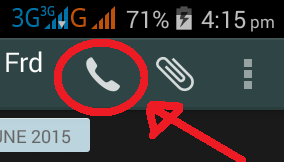
  • Then click on the Voice Call button at the top right corner of the screen
    Brighter Gadgets - How to Buzz a Friend on Whatsapp that isn't replying
  • When it's ringing, you can End the call.
By doing this, the person will know that you just sent him a message and he will definitely check it.

Try this today and see that it works like magic!

Tuesday, 12 May 2015

How to Speed up your Internet Connection on your Android Phone

brightergadgets.blogspot.com
Hello friends,

Longest time… I have been really having a good time

I know that the topic of this article caught your attention. The fact is that, it’s true! Am going to show you how to do it. It will work because it worked/ for me.

Am not here to start exploring deep and complex things about Android and some hard tweaks to do. It’s just a simple and easy to do tutorial. Anybody can actually do this easily, without stress and it doesn’t take time. Enough of the story, let’s get started.

The Trick Behind this
What I want to show you is very simple; it’s a trick though. You will have to install a firewall app on your android phone that blocks apps from accessing the internet. How does.  this affects your network speed? I know you will ask that.

Imagine when 100s of apps are accessing one network then just one or two apps access the same network, what do you think will happen. Take for instance, if a modem shares network to 10 computers and the same modem share network to just one computer. Tell me, what do you think will happen to that modem that shares to one? It will definitely be faster! So that’s the trick behind this.

How to speed up your internet connection on your android phone
What you need:
A rooted phone
Droid wall app --- Click Here to Download
Or
A non-rooted phone
No-Root Firewall --- Click Here to Download
…See I told you that it’s for everybody both rooted and non-rooted users.

STEPS
  • ·  Download any of the apps listed above; it’s your choice.
  • ·  Install and then open.
  • ·Select the app(s) you want to access your network then click save or apply or ok which ever corresponds with the particular app you downloaded.
  • ·   For Droid wall, click here to read more about it. For noroot-firewall, click here to read more about it.

·         Make sure you select few apps for faster speed.


That’s all, it’s very easy to do. Hope this helps you!

Friday, 10 April 2015

How to Convert .Doc Files to Pdf using your Android phone

Brighter Gadgets - Convert PDF to Doc easily
Hello friends,

That annoying moment when you have to switch on your laptop just to convert a file to pdf. I so hate that moment! Am here with an application that will ease you of the stress of converting.

You can actually convert documents from one format to another using your android phone easily. 
You don’t need to on your desktop just to convert that particular pdf file to a doc file because your android phone can do it without stress. All you need is this app am about to share with you and your data on.

DOWNLOAD

STEPS
  • Download the app, install and open it
  • Click the  + sign at the bottom right of your android screen.
  • Click the SELECT LOCAL FILES if the file you want to convert is on your Sd card.
  • Now, locate the folder of the file you want to convert
  • Mark the file by clicking it. Then click done
  • Click the arrow pointing down close to OUTPUT FORMAT to select the format you want the output to be.
  • Output formats available: doc, docx, html, md, odt, pdf, rtf, tex, azw3, epub, lrf, mobi, oeb, pdb, jpg, png.
  • After choosing your output format, click START CONVERSIONS
  • After the conversion process, your file is ready. You can view the file immediately or you go to file manager / download folder to see your converted documents.
Brighter Gadgets - Convert PDF to Doc easily

NOTE: Internet connection required

A LITTLE TIP
If after 3 or 4 conversions, you get the notification message saying Purchase Full Version, just go to settings / app manager / then locate pdf converter pro, click on it and click Clear Data.
Reopen the app and see that you can continue converting heheheheh! 

…Brighter Gadgets   ….every thing is possible

If this post helped you, please use the share button! Thanks

Sunday, 5 April 2015

How To Send Installed Apps Through Bluetooth from your Android Phone

Hello friends,

I am here with another of my “How to” tutorials.

Some months ago, I published an article on how you can share your installed apps using an application called Flash Share which many people cherished that particular post. But the downside of it is that, not every android phone supports flash share (most phones supports it). And I also noticed something that, not every android phone has hotspot and android phone Wi-Fi signal is kind of poor which allows flash share not to work or performs poorly. Now, that’s where this post come handy! Read on

WHAT YOU NEED
Bluetooth App sender.

HOW TO GET THIS

HOW TO SEND INSTALLED APPS THROUGH BLUETOOTH USING THIS APP
  • After downloading, click to open
  • Locate that particular app you want to send by scrolling through the list of apps or click the search bar and type in the name of the app.
  • Now click on the app.
  • Click on SEND.
  • From the list of send options click Bluetooth.
  • You probably know the next step now… Locate the device name of your friend you want to send to.
  • Click the name then blab la bla…
It’s that easy to do!

Now you can share those installed apps from any of your android phone easily.

If you find this post helpful, do share it to a friend.


Friday, 20 March 2015

How to fix Verification of Server Certificate error in Opera Mini Browser Easily

Hello Friends,

...sorry for the long silence

Have you ever wondered why your Opera Mini Browser keeps on giving you that error message saying "Verification of Server Certificate Failed"?  I will tell you why.
When your Phone's date and time isn't adjusted properly, you get that particular error message.

How to fix this 
• Go to your phone's settings 
Then click on Date and Time 
• Set the time and date with any of the methods on your phone. Either by choosing use Network-provided time, GPS provided time or adjust it manually. 
• After setting your time and date appropriately, close the settings and go back to your Opera mini browser. 
• Now input the URL you want to visit and hit go.
• Is it opening? It very easy to fix.


Now you can enjoy browsing with your opera mini browser on your Android Phone. 

Please share this post with your friends.

Wednesday, 21 January 2015

How to Speed up your 2go Star

Hello 2go friends, 

...I get this question always from friends asking me on how they can boost / speed up their 2go stars quickly and sharply from Amateur to Ultimate! That's why this tutorial is here... 

FACT: I believe that there is no particular cheat to boost your 2go star quickly. Personally, I have tried those tutorials online and non of them works. Most of them are time waiting and battery consuming. 
These tips below will definitely help you in speeding your 2go star. 

TIPS: 

  1. Keep on chating with friends and don't bother about your 2go star. The main reason why you are on 2go is to chat with friends, so don't forget that. 
  2. Try as much as possible not to get people bored when chatting with them. Once you get more friendly and interesting with your 2go friends, it will make you chat more with them thereby increasing your online presence. This in return boosts your star.
  3. Try as much as possible to come online every day and chat with someone atleast.
  4. Don't start up conversations with many friends at once. Pick on just 1 or 2 that you enjoy chatting with in other to allow the conversation flow naturally. 
  5. From time to time, engage in 2go rooms. Check the list of room and choose one that you prefer and start chatting with lots of friends.  
Going by these tips, I know that your 2go star will definitely get a new colour before Monday! 


Thursday, 1 January 2015

How to Make your Android Phone Display your Name when Locked

Hello friends,

I would love to share this with you…

Have you ever wondered on how you can make your Android phone display your name when locked? This tutorial will definitely show you on how to do this.
Lets get down to it immediately!

How to do this
* Go to settings, then click Security.
* In the Security settings, Click Owner Info
* Now type your name in the provided bar.
* After typing your name, exit the settings with your Hold Key.
* Now lock your phone manually, and see your name showing.

If you encounter any problem while doing this, please feel free to mention that.

Share this post with your friends.

Wednesday, 31 December 2014

How to change your Sim Card display/background colour

Hello friends,

I know you love changing the look of your phone to your taste, that’s why I brought about this easy tutorial.

How to do this:
* Go to settings then click Sim Management or Dual Sim settings.
* Click the particular sim name you want to change it display colour.
* Now Click “Set background Colour”
Chose a colour and exit.
* Notice the top right part of your screen, the colour representing the sim have changed.
Now, your phone looks more colorful and interesting... share this post with your friends!!! 

Thursday, 18 December 2014

How to Save Friends Profile Pictures on 2go Using your Android Phone

Hello friends,

Some weeks back i posted on How to Save Profile Pictures on Whatsapp which i believe 2go users will also be waiting for such post so... here it is!

2go messenger didn't put include a save button in their chat app that why its almost impossible to save profile picture of a friend in 2go messager. But with this tutorial, you will get to know the simple trick i use in doing this. So, lets dive into the topic "shikina".

HOW TO DO THIS:
  • Open 2go app and locate the friend's profile pics you want to save.
  • Click on the profile then click on the image to view.
  • Now, screen shot the image. Note: Different android phones have different screen shot process but the common way is to Hold Power on button along with Volume Down button. If that doesn't work Hold the Home Button along with Volume Down button.  Check image below
    Brighter Gadgets - How to screenshot
  • Once you screen shot the image, it automatically saves in your gallery... FINISH!
Now, you can download those interesting pictures you love from your friend's profile pics on 2go!!!

Monday, 15 December 2014

How to Change Your Username on 2go Easily


Hello friends,

I got a "How to" tutorial i think you will definitely love. This is for all 2go lovers

After a long wait, 2go finally brings an update we all are proud of. This particular update comes with new features but the most interesting one is the ability to change your Display Name! 
The Display name is the name that appears to friends on your list and this can be changed anytime.

How to do this:
  • From your java phone, go to www.2go.im then click Download 2go (v.4.5.1)
  • After downloading, open the downloaded file.
  • Immediately, it will prompt you to change your Display Name saying "that's how you will appear to your friends bla bla bla". After typing your new display name, click Update.
  • After loading all your contact list, you should see your new Display Name showing where your User Name should be.
Note: 
  • Your Username won't be changed only your display name.
  • There is no limit to the number of times your display name can be changed 
How to change the Display Name later on
  • Go to your profile then click Edit
  • Click Edit profile, then click Change your Display Name.
  • Then put your new Display name and click Update!
 Isn't this cool? Enjoy Chatting like never before...


CHECK this Blog for Tutorials on Microsoft Word 2013. Learn to Create ID cards, cover page, letterhead etc with Ms Word. Click Here 

Tuesday, 25 November 2014

How to Save Profile Pictures on Whatsapp

Brighter Gadgets - How to Save Profile Pictures on Whatsapp
 Hello friends,

I will like to show the easiest way of saving your friends profile picture on whatsapp using your android phone.

I love storing interesting, beautiful and fun pictures from my Whatsapp contacts and i believe you wish to do the same. 
That beautiful picture of her/him, that interesting quotes, that beautiful landscape image can now be downloaded to your Sd card easily. Just follow the steps below...


How to do this:

  • Open whatsapp app by clicking the green icon.
  • Locate the contact you wish to download his/her profile picture.
  • Click on the profile.
  • After the pictures loads, click the icon at the top right corner of your screen.
Brighter Gadgets - How to Save Profile Pictures on Whatsapp
  • Click "Save to gallery"
Brighter Gadgets - How to Save Profile Pictures on Whatsapp
  • And that's all, the picture has been downloaded.3
To view the Saved Picture, Open your File Explorer and go to Whatsapp/Media/whatsapp profile photos there you will see all your saved profile pictures.

See, it's very easy to do. Happy Downloading!!!

Saturday, 25 October 2014

How to Send Apk files through Bluetooth From Any Android Phone


Hello friends,

I want to show you something very important today...

I had a similar problem some time ago, so i "googled" it and got lots of search results. But i wasn't satisfied with the answers i got. The answers are listed below...
  1. Sending the apps via email.
  2. Backing up the app and sending the backed up copy.
  3. Zipping the app and sending it as a zipped folder. And so on...
 Those answers certainly have a "comma". See the "commas" below...
  1. If you don't have an internet connection, i can't use advice 1.
  2. If you don't have a rooted or a 4.0  and above android phone, you can't you advice 2.
  3. If you don't have an app to zip and unzip files, you can't use advice 3.
So, i thought and thought until i came up with this idea... Continue REadiNG...

MY METHOD
My method is very simple, just change the file extension of the apk you want to send.

MY STEPS
  • Go to your explorer and locate the apk you want to send.
  • Hold on it and click Rename
    www.brightergadgets.blogspot.com
    Rename the app you
    want to send.
  • Then Clear the .apk in front of the name (after the name of the file).
    For example if its OfficeSuit.apk you want to send, Clear .apk from the name and click done. So you will be left with OfficeSuit.

    www.brightergadgets.blogspot.com
    Clear .apk and click done
  • Finally, hold on the app (Officesuit) then click Share... Click Bluetooth and share it with your friend (the receiver).
    www.brightergadgets.blogspot.com
    Click share

    www.brightergadgets.blogspot.com
    Click Bluetooth share
  • Now on your friend's phone (the receiver), Rename the received file... From OfficeSuit to OfficeSuit.apk
    www.brightergadgets.blogspot.com
    The receiver should put .apk
     Note: If you don't rename it, you won't be able to install the file because the extension has changed.
Please, follow every step according... And note, not all file explorers are the same. Where my share icon is might not be where yours will be, so understand your file explorer very well.

If you encounter any problem while doing this, please comment about it. 


Tuesday, 21 October 2014

How To: Create GIF Images Using your Android Phone Easily

Brighter Gadgets - GIF Me!
Hello people,

I want to show you the easiest way to create GIF images on your Android Phone. 

GIF ME:
I so much love GIF images that was why i went in search of this app and it really impressed me. With this app, you can create cool gif images using your android phone easily. All you need do is download and install!
This is the easiest way to create gifs on your android phone and share immediately to social medias.

DOWNLOAD GIF ME! HERE 3.8mb

HOW TO A CREATE GIF IMAGE

  • Download and install then open app.
  • Choose the recording type you want [either Normal, Multi Record or Stop Motion]. I prefer the stop motion because its pauses after each frame.
Brighter Gadgets - GIF Me!
  • Then Click the Start button.
  • After Recording, adjust the speed (optional) then click the save button.
Brighter Gadgets - GIF Me!

That's all... You are done with your Gif images!

FEATURES
  • Capture 14s
  • Real time color filters
  • Send by email
  • Share on Twitter, Facebook, Tumblr 
  • You can remove watermark in settings
  • Stop motion or video mode

Tuesday, 14 October 2014

How to Charge Your Battery Faster

Hello friends…

This tutorial will surely teach you on how you can charge your battery faster (x2)

HOW TO DO THIS:
  • Get your phone (either android, java whatever…)
  • Get your phone charger
  • Now switch off your phone and charge
  • If it takes your phone 4 hours to full, now it will take it just 2 hours or 2.30 hours.
Other ways to increase charging time
  • Use an original charger and a good charger cable…
  • Don’t operate the phone while charger.
  • You can put your phone in airplane mood to enable it charge faster.

How to Tune a Guitar With An Android Phone

Hello friends

I love being smart with my android smartphone This app comes handy for beginners in guitar learning…

That annoying moment when you pick up a guitar and realized that it is not tuned argggh… And as a beginner, tuning with ears is always difficult. Read On for this tutorial will surely help you fix that.


HOW TO USE THIS APP:
  • Firstly, get your guitar near
  • Install and Open the downloaded app
  • Swipe on your screen until you see the interface that looks like a guitar (check picture below)
  • Then strike a string and check the app. If it says tune up or tune down, keep on tuning until it says in tune.
  • Do so for all strings on your guitar and see the output.

To know if this app really works, give a pro the tuned guitar and ask him his it is already well tuned and hear what he will say.

Thanks… If this “How to” tutorial helped you, please recommend it to your friends.


How To Convert Videos To Audios Easily Using Your Android Phone


Hello friends,

I love being smart with my smartphone…Now you don’t need a computer to convert videos to audios again as long as you got an android phone.


From ZippyShare (Direct link)

HOW TO DO THIS: 
  • Install the downloaded app and open
  • Click on Open and locate the video you want to convert
  • Set the codec and click Convert.
  • Wait for the process to complete… Now go to your File explorer and check the Music Folder, you will see your converted music there (unless you have altered the folder to save in the settings).
  • You are done… Play the converted music!


 If this tutorial helped you, please share it with your friends...

Thursday, 2 October 2014

How To: Choose Wallpaper without Compulsory Cropping on your Android Phone.

Hello friends,

I got a nice tutorial for you… That annoying moment when you download an HD picture from the internet, but in the process of setting it as your wallpaper, your phone then prompted you to crop the picture first thereby reducing the quality of the HD picture. READ ON for this tutorial will definitely help you on how to set your wallpaper without cropping the picture you want to use.

Check this pics below: My default gallery is prompting me to crop the image first before using it as my wallpaper.
WHAT YOU NEED:


STEPS:
  • Download and install wallpaper HD.apk.
  • Go to your Phone Picture Gallery and locate the picture you want to use as your wallpaper.
  • Click Set Picture as (this option varies with phone).
  • Choose Set as HD Wallpaper.
  • Finally, choose Set.
  • Now check your Home screen the see your picture.
It’s very easy to do…


If this tutorial helped you, please share it with your friends.


Search My Article

WE LOVE YOUR COMMENTS!!!

Like Brighter Gadget on Facebook

Read Our Tweets