Hope you read my last post about how you can
Pimp your Android with these Unique Theme Launchers which i enlisted five (5) theme launchers
* Go launcher
* Next launcher
* Honey Comb Launcher
* Regina Launcher
* Adw Launcher
...but today i would be writing deep on Next Launcher. Its one launcher i love so much because of its features like
* The 3D feaures * The effect settings * The advanced settings * The Gesture settings * Dock settings and so on...
Lets get started!!!
These pictures you are viewing right now are the home screens of next launcher theme. See how beautiful they will be on your android phone.
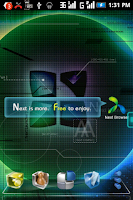
These are just the defaults themes that follows the launcher after installing.
If you are new to the launcher, its features might get you confused but after this tutorial, i believe you will be very good in handling the launcher like a pro.
1.0
After downloading and installing: After downloading and installing, the launcher starts giving you some basic tutorials which you should follow with patiences. So when you through with that, first you should do is to click
the 3D icon that is labelled theme and it will take you to a menu showing you
1.1 Featured themes: this is where you can download more themes but if you want to check your already installed themes, sweep the screen to the
left where you see installed and you can choose the default themes there.
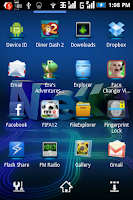 2.0 Sending shortcuts to your home screen:
Shortcuts enables you to click apps quick from your home screen instead of looking for it application menu.
So to send apps to your home screen, you have to click the the
* Menu Button in you home screen
* Then click the arrow facing downward on the bottom right of the screen.
* A menu will then come out, then hold the app you want to move and drag to the screen.
3.0 How to change the settings of the theme to your own choice: Changing the settings to your choice is a very wonderful thing this launcher did.
To do this you
* Have to slide your finger on the screen and then click preferences.
I
3.1 To change the screen settings you just click *Screen settings then you change alter what ever you want.
* Like Screen Orientation is having either the verticle mode, the horizontal mode or follow system settings.
* You will also see something like wallpaper. with this you can change the wallpaper of the theme by chosen your desired wallpaper either your face, your ride, your house, what so ever.
* You can also see some things like * wallpaper cut model, * screen indicator * Next Key * Hide status bar *Hide Icon Label * wallpaper dynamic effect (this one is cool ;-)) * Screens scroll circularly * screens transition speed and so on.
 3.2
If you want to change the dock settings, app drawer settings you go their and make your desired changes.
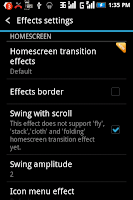
3.3 Changing the * Effects is quite interesting. By clicking the Homescreen transition effects it takes you where you can change the way the transition on home screen moves when you slide you finger right and left. You can choose from the 3D list * Crystal * Cloth * Folding or from the classic list by swiping your finger up. You can choose from * Flip (3D) * Flip (Simple) * Windmill * Fly * Bounce * Bulldoze * Cube (Inside) * Cube (Outside) * Wave * Stack * Glass * Gradual.
3.4 Scroll down and you will see "Horizontal transition". Over there you can make more changes to this launcher.
4.0 Gesture Settings: it deals with the action of your finger(s).
* You will see "Glide Up action". you can choose what would happen if you slide your finder up on the home screen.
* You can also see "Glide Down action", "Double finders glide up action" and so on.
NB: You can make the actions to open applications of your choice. For example, you can set "Glide Down action to open "Modern Combat" see really cool.
I did mine that double tap on screen would open my finger print lock and it looks like magic.
5.0 Advanced Settings: Open advanced settings, you get "Notification", "Lock screen edit", "language", "copy home screen (Beta)".
NB: Don't tamper with the Language menu, because you might not understand the other language you will changed it to.
* You can use the copy home screen ( Beta) to copy the formal launcher of your phone to this new one.
You can also Backup and Restore.
I think that should be all for now enjoy your newly found friend NEXT LAUNCHER!!!
Thanks once more for visiting...


