Thursday, 9 July 2015

Switch Faces of Pictures Using your Android Phone and Tab

brighter gadgets edit pictures
Hello all,

You can now switch faces of different pictures easily using your android phone. You don’t need to head over to Photoshop to do this because it’s now possible with your android phone.

This app works well for tablet users because cutting a face by swiping your fingers on your small screen is very difficult but for tabs, you get better space to swipe your fingers or even by using a pen.

Cut Paste Photo
Cut and paste photo app makes changing a face on android phone easy just by cutting and paste. One good thing about this app is that, it easy to use. You don’t have to learn it before you will be able to use it. Just as the name sounds “cut and paste photo” that’s what it does. You cut the picture you want to use then place it on the new picture window.


  • How to use this app
  • Download and install
  • Open app then click Cut Photo; the one having the scissors icon.
  • Locate the picture you want to cut a part from (the face or anywhere).
  • Now swipe your finger/pen across the desired area you want to cut. Make sure your beginning and end points meet to get a better crop. You can click the Advance Edit to edit the cut out better.
  • If okay with your cut out, click done.
  • It will take you to the home screen, click on Paste Photo
  • Select your picture. Notice that at the right corner of the screen, you will see your copied cut out. Now, choose it.
  • NB: If you have done two or more cut outs, they will be in your clipboard (at the right corner of the screen).
  • With 2 finger gestures, stretch the image to the right size you want and place appropriately. 
  • Click the save diskette icon at the top right corner of the screen and you are done!
You can still use this app to duplicate some parts in a picture. Cool hunh? Try this and see for yourself.

Tuesday, 30 June 2015

How to Save Web Pages as Pdf using your Android phone

Hello friends,

Am here with a tutorial for you… During some research on the internet, we might come across some useful information that we feel like having as a document saved on our phones for future references. If you were researching with your computer, it’s very easy to do this (to save a webpage as a pdf) but with other devices, it’s kind of hard and sometimes, you might need a third party application. 

Saving a web page as a pdf on your Android phone is not hard though lolz but all you need to do is to have the right browser.

Chrome browser can easily save a web page as a pdf on your android phone – it’s has that particular function already, so you don’t need any other app for it or extra tricks to do such. 
So let me show you how you can use your android phone to save web pages as pdfs. Read on

How to do this:
  • Launch your Chrome Browser. If you don’t have one installed on your phone, please do click here.
  • After that, open the web page you want to convert to pdf
  • Click the option (menu) key on your android phone.
  • Choose Print from the pop–up window.
  • In that place having printer name, click it then choose Save as PDF
  • Click on Save at the bottom part of the new window.
  • Now, select the folder where you want that file to save
  • Then click Save.

That’s all

If you are encountering problems saving a file, try some of these troubleshooting processes below:
1. Check if the file name is having unsupported characters like colon “:”, semi colon “;” etc.
2. Check if the site supports copying or printing of their articles / images
3. Check whether you have the latest Google chrome installed on your phone.
4. Check if you followed the procedures rightly.

With these, I hope you won’t encounter any problem saving a web page as a pdf anymore.

Cheers!

Monday, 15 June 2015

Record your Voice Calls Automatically on Your Android Phone

Have you ever forgotten an information passed to you on phone before? Maybe because the call was so lengthy that you forgot some lines of the important message. Or have this ever cost you your job? Like your boss called you, then directed you somewhere but you didn’t get him clearly and there was no way you could get the information back because you didn’t jot them down. Or where you embarrassed because you got no prove of what somebody said to you on phone and when you met that person one on one, he denies everything he said? Oh! That’s really annoying! Like in this situation when your fiancĂ©e tells you her birthdate on phone but you weren’t with your diary then to note it and when that special day arrived, you forgot. Jeeez! You are gone man!

All those situations listed above would have been controlled only if you had those calls recorded. Now, do you think recording a call is really important? Sure it is! 

Most problems faced by people when downloading a particular app is looking for that perfect one; same thing goes in this situation. There are lots of ehmm ehmmm “not-good” apps on app store meant for phone recording but they don’t work fine that’s why I said “not-good” apps (having one problem or the other). Am here to really ease you that stress of searching round play store because I am going to give you a working link straight to the app.

The solution to Voice Call Recording is --- Call Recorder (that’s the name of the app).

How to set it up

  • Click the link above to download and then install
  • Open app
  • On Default, the On switch at the top right corner of the screen is active.
  • You can then click the menu icon and go to settings
  • Mark the Enable notifications and you can also change the File format but be very careful because the mp3 file format didn’t work for me. Am using the 3GPP file format.
  • After that, you can put a call across with another number to test it.
  • After the call, your successful call record notification will appear at the notification bar.
  • Click on it then play the recorded file with any of your music player.
NB: The recorded files are placed on your memory card. Sdcard/callrecorder

That’s all! By doing this, all your calls both incoming and outgoing will be recorded automatically.

Thursday, 11 June 2015

Download Snake and Ladder Game for Android Phones/Tabs

Hello friends,

I know you really miss this game called “Snake and Ladder”… It’s been a while… When I was a kid, I was damn crazy about this particular game. We do sketch it then on paper and play. It was really fun but as I grew, I forgot about it completely. Thanks to Android device for bringing it back to my memory. I can now enjoy my long lost game hehehehe. I believe you have also missed this game. Get ready to bring back old memories!!!

Snake and Leader Game Download
Just like the old times… The game still involves snakes (sexy looking snakes) and some old rickety looking ladders. Two extraordinary dice that are controlled by your touch – at random though. It’s an interesting game between you and cpu which the aim is to get to the house before your opponent. As usual, on your way home, if you are bitten by a snake, you will be pulled down to the tail end of the particular snake that bit you. Why am I even explaining this game to you, am very sure that you know the rules lolz.
To that effect, click here to download 14mb

After downloading, install and play! Enjoy…

Wednesday, 10 June 2015

How to Buzz a Friend on Whatsapp that isn't replying

Brighter Gadgets - How to Buzz a Friend on Whatsapp that isn't replying
Hello friends,

I want to show you one trick i uses in buzzing peeps on whatsapp. Note, i said it is a "trick"

Have you been in that situation when you want to chat with a friend, like you want to send the person some important details that you need his/her urgent reply but after sending the message, you notice that it has gone but the person haven't read it and Whatsapp doesn't have the BUZZ button. This is where this trick works!

How to Buzz a friend on Whatsapp
  • Open whatsapp
  • Click on the friend you want to chat with
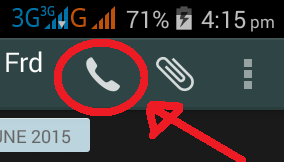
  • Then click on the Voice Call button at the top right corner of the screen
    Brighter Gadgets - How to Buzz a Friend on Whatsapp that isn't replying
  • When it's ringing, you can End the call.
By doing this, the person will know that you just sent him a message and he will definitely check it.

Try this today and see that it works like magic!

Wednesday, 27 May 2015

The Fastest way of Sharing Photos on Facebook using your Android phone

Hello friends,

Am here with an interesting article for you all.

…have you ever experienced that moment when you took a good looking picture of yourself and you are very anxious of spreading it all around Facebook so that your peeps could see how good looking you are? During this moment, you are really in a haste to upload that particular picture and you really need the fastest way of uploading it.

If you haven’t experienced the above scenario, then maybe you have experienced this one am about to narrate. That moment when you have only 5% of battery life on your android phone; you aren’t at home and you really need to upload that picture before you reach home to charge the phone? I guess you have experienced that one because I have. Now read my simple tip below to help you upload your picture faster to Facebook or any other social networks with just one click.

How to Share pictures to Facebook – The Fastest Way
  • After snapping your picture, click that share icon close to the picture either at the top right, bottom left or wherever.
  • Click Facebook from the list you get after clicking that particular icon.
  • After clicking Facebook, drag the notification bar of your android phone downwards and you will notice a process bar. That’s the process bar for your picture upload.
  • After the progress bar completes, your picture has finished uploading.
  • After uploading, you can click that completed progress bar and in the new window, you can tag a friend, like and comment. (optional though)

NB: If your network speed is very fast, you might not see the notification bar.

By doing the above listed steps, you have successfully uploaded a picture to Facebook easily and faster.

Myth: Some people claims that this progress consumes more data but it’s not true. It all depends on your picture size though.
Share this little tip with your Facebook friends.

Tuesday, 12 May 2015

How to Speed up your Internet Connection on your Android Phone

brightergadgets.blogspot.com
Hello friends,

Longest time… I have been really having a good time

I know that the topic of this article caught your attention. The fact is that, it’s true! Am going to show you how to do it. It will work because it worked/ for me.

Am not here to start exploring deep and complex things about Android and some hard tweaks to do. It’s just a simple and easy to do tutorial. Anybody can actually do this easily, without stress and it doesn’t take time. Enough of the story, let’s get started.

The Trick Behind this
What I want to show you is very simple; it’s a trick though. You will have to install a firewall app on your android phone that blocks apps from accessing the internet. How does.  this affects your network speed? I know you will ask that.

Imagine when 100s of apps are accessing one network then just one or two apps access the same network, what do you think will happen. Take for instance, if a modem shares network to 10 computers and the same modem share network to just one computer. Tell me, what do you think will happen to that modem that shares to one? It will definitely be faster! So that’s the trick behind this.

How to speed up your internet connection on your android phone
What you need:
A rooted phone
Droid wall app --- Click Here to Download
Or
A non-rooted phone
No-Root Firewall --- Click Here to Download
…See I told you that it’s for everybody both rooted and non-rooted users.

STEPS
  • ·  Download any of the apps listed above; it’s your choice.
  • ·  Install and then open.
  • ·Select the app(s) you want to access your network then click save or apply or ok which ever corresponds with the particular app you downloaded.
  • ·   For Droid wall, click here to read more about it. For noroot-firewall, click here to read more about it.

·         Make sure you select few apps for faster speed.


That’s all, it’s very easy to do. Hope this helps you!

Search My Article

WE LOVE YOUR COMMENTS!!!

Like Brighter Gadget on Facebook

Read Our Tweets